 HypeMigo
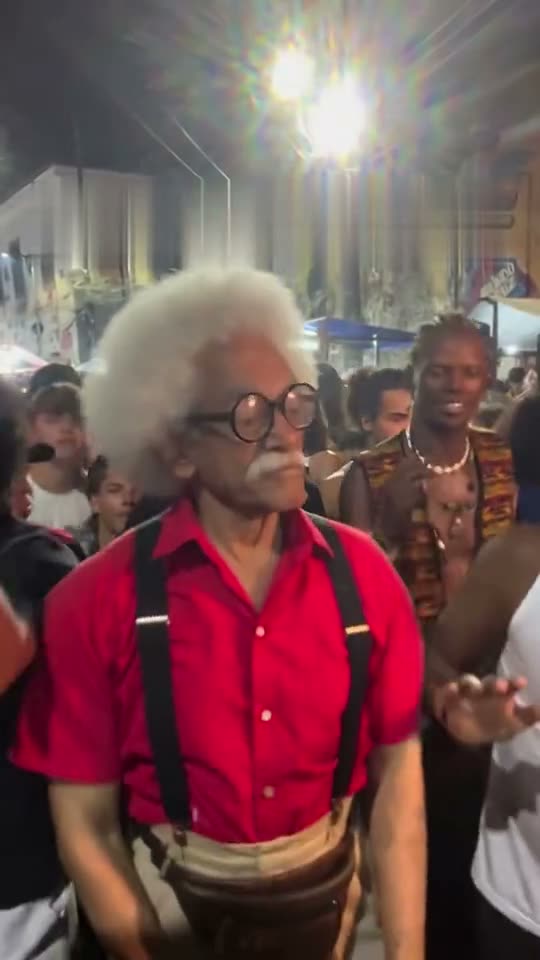
Before changing templates or starting another generation, take a moment to inspect the source photo. A picture can look great in your gallery and still leave important details hidden for an action scene.
This guide gives you a practical selection checklist. It cannot guarantee a particular generated result, but it helps you spot avoidable problems before starting a task.
Keep the main subject easy to identify
Choose one person per photo for a person role. Avoid group pictures where the intended subject is unclear. Keep the face visible, and look for sunglasses, hair, hands or objects that hide important features.
Prefer a photo where you can see the person clearly at normal viewing size. Enlarging a small, blurry face does not restore the missing detail. Strong beauty filters and decorative overlays can also make it harder to see what is actually in the source.
Match the crop to the movement
Read the template's photo tip before uploading. A portrait can show an expression, while a half-body or full-body picture adds information about posture and clothing.
For dance templates or a chase, look for visible shoulders, arms and legs. Avoid crops that cut through hands or feet if you have a wider version available. Leave a little room around the subject instead of pressing the body against every edge.
That extra space is a preparation choice, not a promise that the output will preserve every detail or follow exact choreography.
Use clear lighting and a readable background
Look for a face that is neither lost in shadow nor washed out by bright light. A simple background makes it easier for you to inspect the subject and check for objects overlapping the body.
Before choosing a picture, ask:
- Can I see the eyes, nose and mouth clearly?
- Is the face sharp enough without zooming far in?
- Are hands or important body parts hidden?
- Is someone else standing directly behind the subject?
- Does the photo match the template's role and crop advice?
For two-person scenes, prepare two separate images
HypeMigo's two-person templates use separate role slots. Prepare one photo for each person and check the role labels when placing them. A side-by-side collage is not the same as supplying two separate photos.
For a reunion scene, start with two readable portraits. For a scene involving more body movement, check the individual template's guidance. If the pictures differ greatly in lighting or framing, consider whether you have a pair that is easier to compare visually.
Check the file and your permission to use it
The photo picker accepts JPG, PNG and WebP, up to 10 MB per image. If a file is rejected, verify both its actual format and its size; changing a filename extension does not convert an image.
Choose pictures you have permission to animate, including permission from other people pictured. For questions about how the service handles photos, read the privacy page.
Save your selection before generating
You can prepare photos and save a local draft before deciding to generate. Local drafts stay in the same browser and can be lost when browser data is cleared, so keep the original files too.
When you are ready, return to the template catalog, confirm the duration and format, and generate. Each video uses 20 credits. If your next attempt needs a different photo, change that one input first so you can make a useful comparison.