 HypeMigo
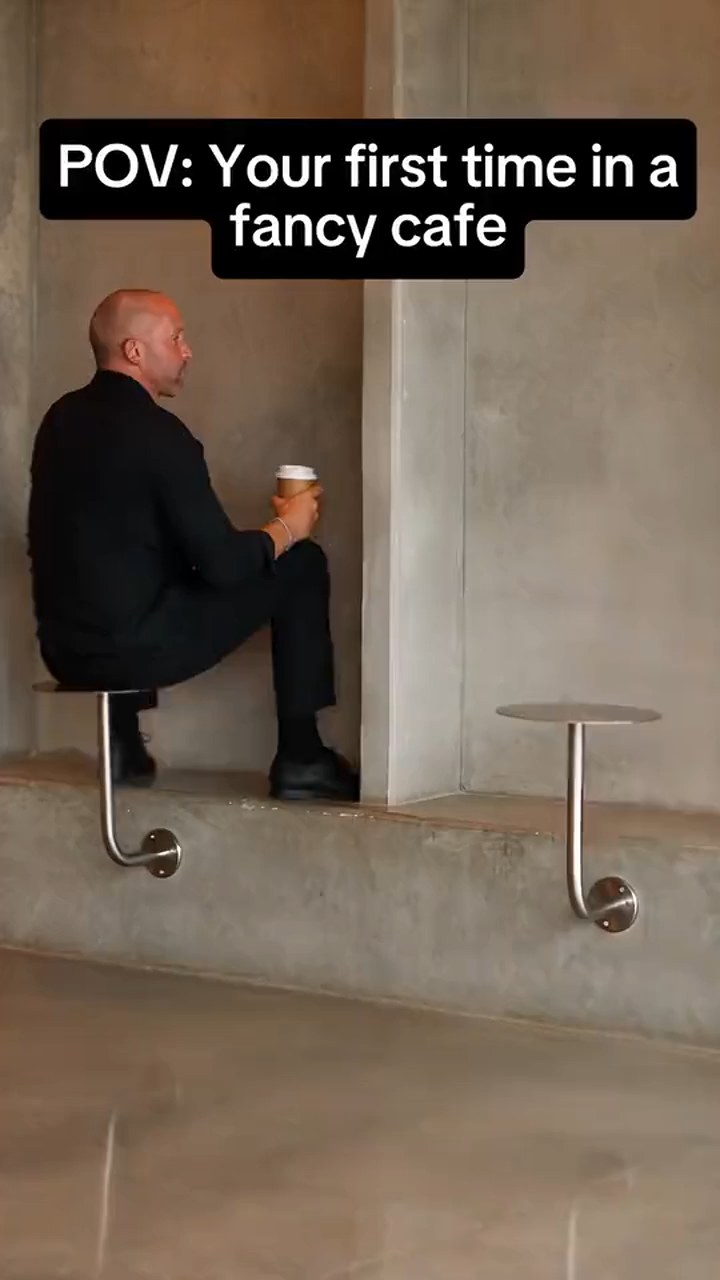
The Fancy Cafe meme turns an unfamiliar piece of furniture into a small social disaster: you sit on a tiny wall-mounted table, somebody else sits on the bench below it, and you quietly move down. The joke needs the wrong seat, the example set by the regular and the embarrassed correction. A generic coffee-drinking clip misses the point.
Use the First Time in a Fancy Cafe AI video generator to choose your cast and make this scene from photos. The reference preview shows the intended sequence; AI-generated faces, movement and timing can vary. It is not a promise of an identical result.
1. Decide who plays each role
Choose one person if only you should appear as the first-timer. Upload your portrait in the first slot; the scene supplies a fictional regular. Choose two people to cast the regular as well: photo one sits on the tiny table, while photo two walks in and uses the bench correctly.
Use a separate adult portrait for each role. A group photo makes the identity assignment ambiguous. The second person is not another first-timer and should not also sit on the table. You do not need a separate template for the two-person version.
2. Pick photos that support a seated scene
Keep the face, eyes and shoulders visible. Leave some space around the body rather than cropping tightly at the chin. Avoid a hand, cup or phone covering the face. For two people, similar lighting helps the scene look coherent, although it does not guarantee that an AI model will preserve every detail.
The upload fields accept JPG, PNG and WebP, at least 300×300 pixels and up to 10 MB each. Check the thumbnail and role label before moving on. More advice is in the photo preparation guide.
3. Check the settings and price before generating
The template is set to 15 seconds at 480p, with a 9:16 vertical format selected initially. You can choose 16:9 in the generator. Vertical framing usually leaves more room for the table, bench and seated person in a phone feed; check that all three remain legible in the preview.
Browsing and saving a local draft are free. Video generation costs 20 purchased video credits. No free generation credits are included with this template. See current credit packs and prices before starting. Signing in or saving a draft does not start a generation.
Start once and wait for the existing task. If a response is slow or the browser is interrupted, return to the same account and template to recover its status instead of repeatedly creating another paid job.
4. Listen to the finished reference soundtrack
This template uses the selected reference video's soundtrack. It does not ask the video model to compose a replacement song. The service generates the picture, then restores the reference audio for the final preview and MP4 download.
The playable final preview and downloaded file use the same prepared result. If the soundtrack cannot be restored or its duration does not match, delivery stops with an error rather than silently returning different music. Keep the task and contact support before creating another paid generation. This is a delivery problem, not evidence that you need a new photo.
5. Review the joke before saving
Watch for the sequence: wrong seat first, regular using the bench next, then a quiet correction. Check that the two people keep their assigned faces and roles, the furniture does not change unexpectedly and the movement looks plausible. Listen with sound enabled; mobile browsers may start muted or require a tap.
AI can miss the timing or distort a face or hand. A successful file download does not mean every visual detail is correct. The reference clip is an example of the intended format, not a generated sample from your photos.
Save on iPhone or Android
Use Download MP4 after the final preview is ready. On iPhone, check Safari's Downloads or the Files app; open the video and use Share → Save Video if that option is available. On Android, check the browser's Downloads or the Files app, then open the MP4 in a compatible player. Browser and OS menus vary.
If an in-app browser prevents downloads, open the same template in Safari or Chrome with the same account. Recover the existing job rather than paying for another one. After saving, play the file locally to check both picture and sound before posting.
Common questions
Is Fancy Cafe the same as a tiny desk concert?
No. The cafe scene is a seating mistake and a reaction. A tiny desk concert is a performance, and a coffee-making template is about preparing a drink. Choose the scene whose action matches your idea, rather than relying on the word “desk” or “cafe” alone.
Can I make the meme with only one photo?
Yes. One-person mode assigns your portrait to the first-timer and uses a fictional supporting regular. Two-person mode requires two separate portraits and lets you assign both roles.
Can I add a POV caption?
Add it in your posting app after downloading. Keep the caption short enough that it does not cover the tiny table or the move to the bench. The generator is instructed to return a clean picture without baked-in captions.
Will it recreate the original exactly?
No. The template specifies the scene and restores the selected reference soundtrack, but the generated picture can differ in identity details, action and timing. Review the result before sharing.